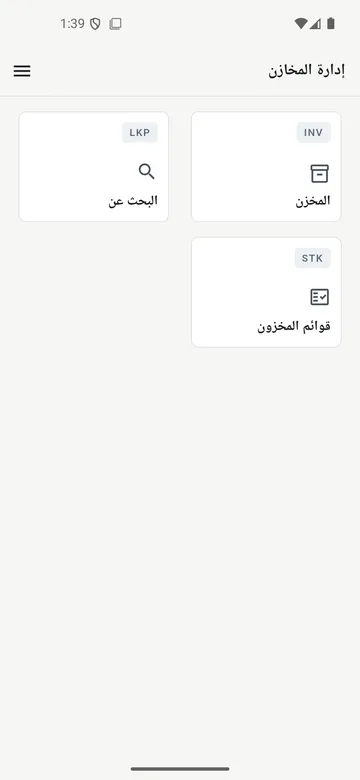
Direct posting, nothing in between
Quantities go into the ERP the moment the worker confirms them. No export files, no end-of-day import, no second copy of the truth.

StockSync puts receiving, shipping, counting and item lookup on an Android handheld and posts every quantity straight into Microsoft Dynamics 365 Business Central. No middle files, no end-of-day import: what the worker confirms on the device is what the back office sees.
Each job starts from a document that already exists in the ERP and ends with a posting back into it. Nothing is retyped.
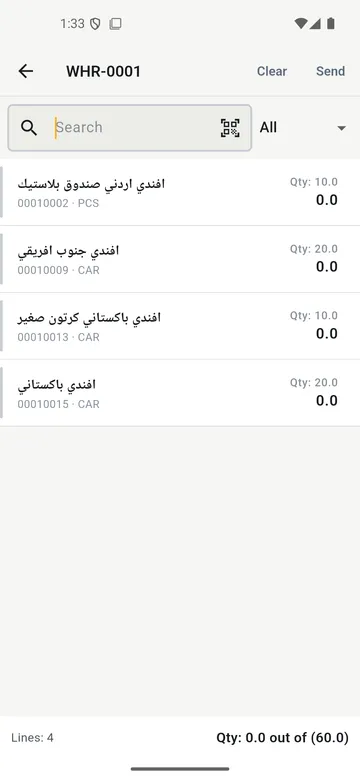
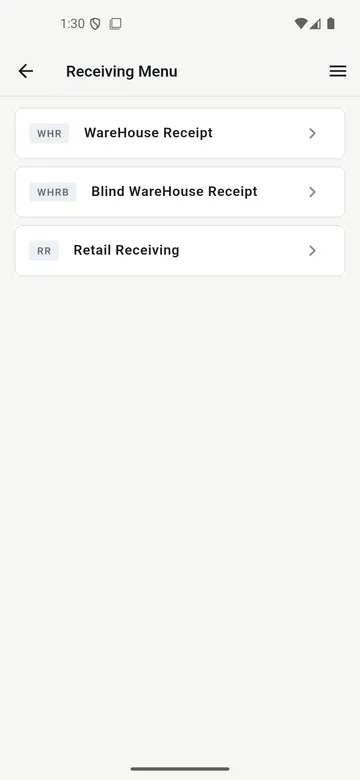
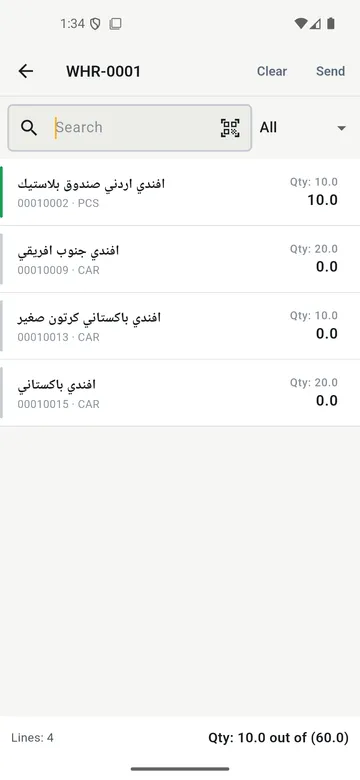
Warehouse receipts, normal or blind, purchase orders, purchase returns and retail receiving all open on the handheld. The worker sees the expected lines, scans or types the quantities and posts back to the ERP in one tap.
Warehouse shipments, normal and blind, sales orders, sales returns and transfer orders between stores, on both the shipping and the receiving side. Each document is worked line by line and posted when it is complete.
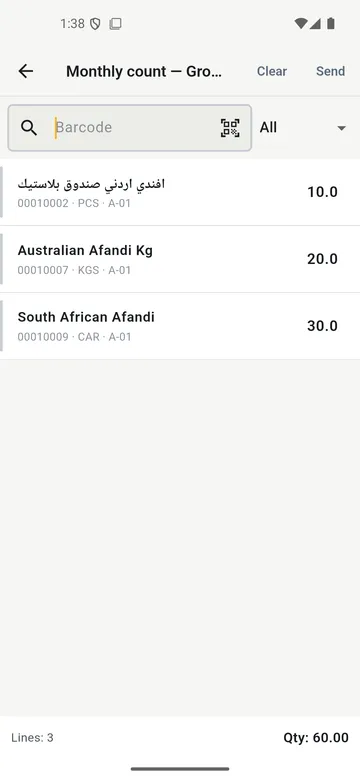
Inventory worksheets sync from the ERP to the device. Teams count by area inside the store, record positive and negative adjustments, print labels and raise stock requests. Quantities post straight into the ERP worksheet, ready for the accountant to review.
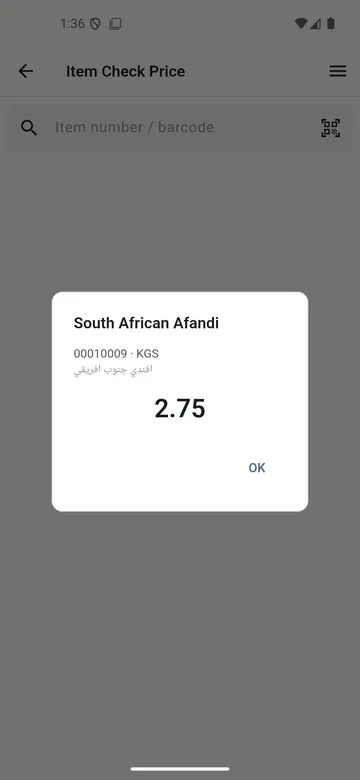
The full item catalog, more than 20,000 items, syncs to the device so lookup works even when the connection is slow. Each item shows every unit of measure and barcode, on-hand inventory per location, and a live price check by item number or barcode.
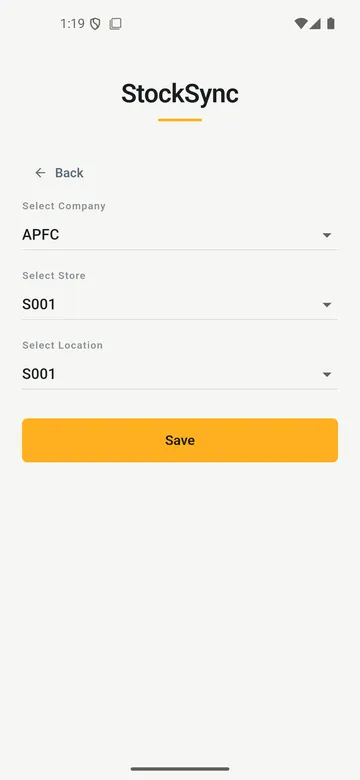
Each device is registered and linked to a company, store and location. Each employee signs in with an ID and PIN and sees only the tiles the back office allows. When the server or the ERP is down, the app says so in plain Arabic and the cached data stays usable.
Quantities go into the ERP the moment the worker confirms them. No export files, no end-of-day import, no second copy of the truth.
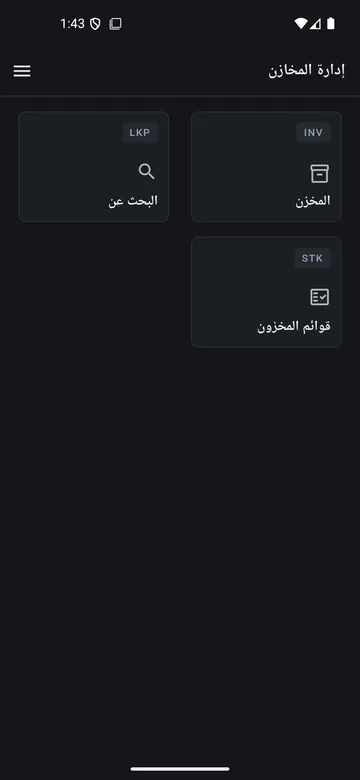
The home menu is built from what the back office allows. A receiver sees receiving, a counter sees counting, and nobody sees a tile they should not touch.
Every screen is fully Arabic and fully English, right to left done properly, with a dark theme for early receiving hours.
The app talks to a pluggable integration server. Today it connects to Dynamics 365 Business Central and Dynamics NAV; the same server can be extended to other ERPs such as SAP or Oracle without touching the app.
For IT managers and ERP consultants: what runs where, and what we touch when something has to change.
Android handheld, built with Flutter. Arabic and English, light and dark themes. The worker scans, types and confirms.
Ships with the product. Registers devices, applies permissions, caches the item catalog and turns each action into the ERP’s own transactions.
Microsoft Dynamics 365 Business Central or Dynamics NAV today. The server is the only layer that changes when a customer runs a different system.
A full mock mode ships with the server, so a customer can run demos and train staff on realistic documents with no live ERP connected.
Each handheld is registered once and linked to a company, store and location. From then on, the back office decides who can do what on which device.
Android handheld devices with a camera or scanner, a server to host the integration layer, and a Microsoft Dynamics 365 Business Central or Dynamics NAV environment. We confirm the exact versions during the gap-fit review.
Devices are registered and linked to a company, store and location before they can do anything. Employees sign in with an ID and PIN, and their permissions come from the back office, so a tile disappears the moment a permission is withdrawn.
The app tells the worker clearly, in Arabic or English, that the server or the ERP is unreachable. The synced item catalog and cached data stay usable for lookup. Posting needs a connection; the app does not post quantities offline.
Yes. New operations are added to the app and the integration server together. A different back office is handled by extending the integration server; the app itself does not change.
It depends on how many operations you switch on and how clean the item master is. We start with the mock mode so your team can see the flows on day one, then connect the live ERP once the configuration is agreed.
Knowing the limit up front is worth more than discovering it later.
Tell us which ERP you run and how many stores and devices you have, and we will set up a demo in mock mode on realistic documents.